Module in this article: iFlow Docs
Generate an SAP CPI Technical Design Document from the iFlow
What an SAP CPI technical design document should contain, a structure you can follow, and how to generate one in Word, PDF or HTML from the iFlow, or into your own template.
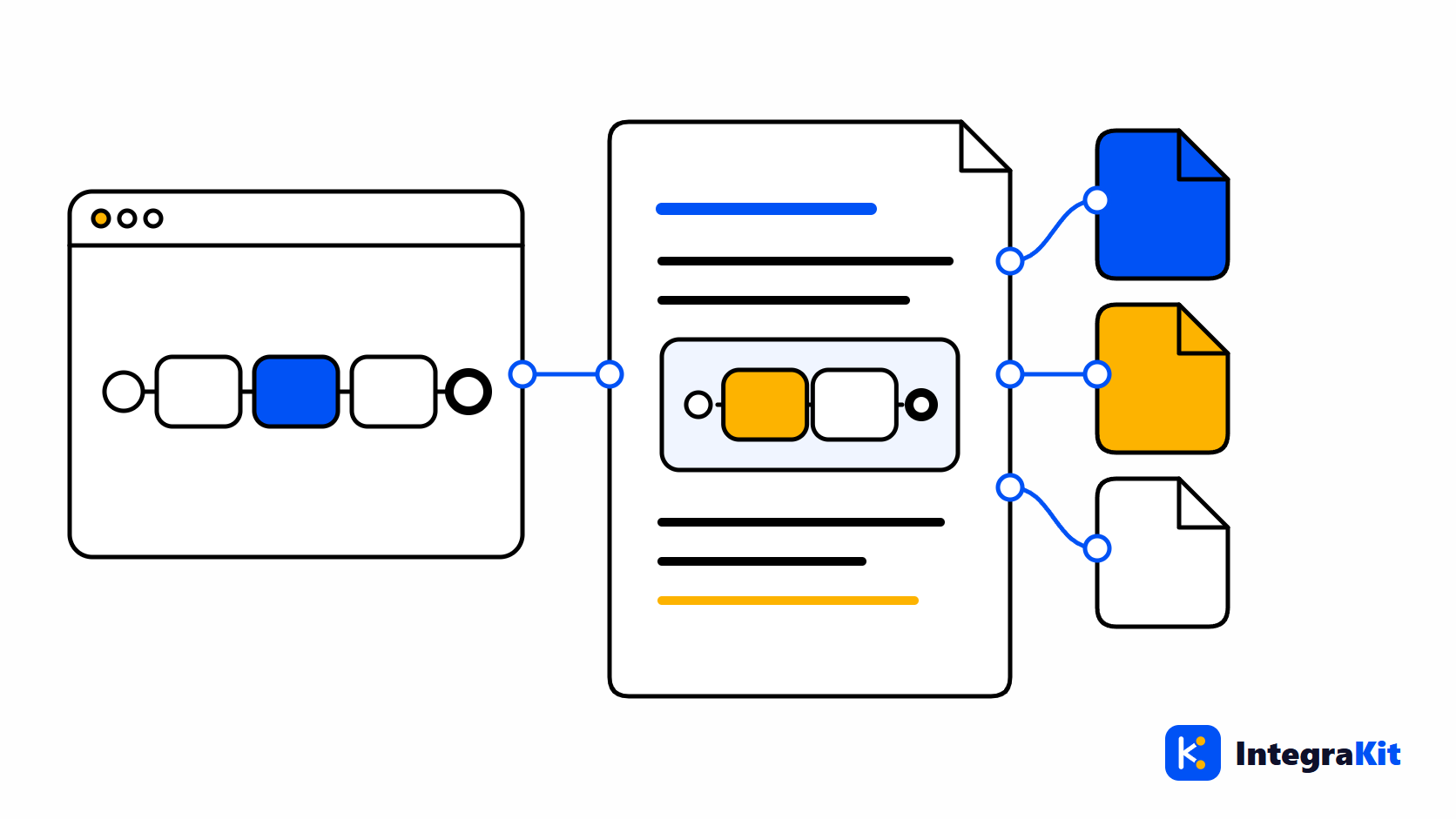
Every SAP Cloud Integration (SAP CPI) project asks for a technical design document, and most of them are written twice: once before the build, from the specification, and again at hand-over, from the iFlow, because the iFlow changed. The second one is mostly copying what the iFlow already says.
This article lists what a technical design document for an iFlow should contain, and shows how to generate one from the iFlow itself, in Word, PDF or HTML, or in your company's own Word template.
What the document is for
A technical design document tells someone who did not build the iFlow how it works: which systems it connects, what it does with a message on the way, how it fails, and what an operator needs to run it. It is read in reviews, at hand-over, and months later when the interface breaks.
What to put in it
- Interface overview: name, ID, package, purpose, senders and receivers with their adapters and addresses.
- Flow: a diagram and, for each process, a short narrative of what happens to the message.
- Routing: each Router, its routes and their conditions, and the default route.
- Mappings and scripts: what each one does, in a sentence or two.
- Headers and properties: what the iFlow sets and reads.
- Error handling: the Exception Subprocesses and what they do.
- Security: the credential and key names it uses (never the secrets).
- Externalized parameters, and the Data Stores, JMS queues and ProcessDirect links it uses.
- Operations: where to monitor it, what to do when it fails, whom to contact.
Why hand-written documents go stale
Every item on that list is already in the iFlow. Writing it down by hand means copying addresses, conditions and parameter names, and every change to the iFlow makes the copy a little more wrong. A document generated from the iFlow is right on the day it is made, and making it again after a change takes a minute.
Generate it from the iFlow
- Open the iFlow in the designer, click the "Kitegra" button and choose "Document this iFlow". The iFlow document opens in a new tab.
- Check the facts it read: participants and adapters, processes and their steps, routes, mappings and scripts, headers and properties, parameters, security material names, stores and links, and the error handling.
- Pick a Template: Technical design, Short summary or Operations hand-over.
- Fill in Project and Author; they are kept for the next document.
- Download it as Word, PDF or HTML.
The diagram is drawn from the iFlow, and each process gets a narrative such as "Receives messages from … over …" and "On error: …". Without the designer, choose "Upload an iFlow (ZIP or .iflw)" instead; an uploaded file does not count toward your plan's iFlows. The PDF's labels are in English.
Use your company's own Word template
If your project has a template, choose "Your own Word template". Write placeholders in a .docx file where the facts should go, then choose "Fill and download":
Interface:   {{iflowName}} ({{iflowId}})
Package:     {{package}}
Project:     {{project}}        Author: {{author}}        Date: {{date}}

Purpose
{{description}}

Senders: {{senders}}        Receivers: {{receivers}}
Adapters: {{adapters}}

How it works
{{narrative}}

Routing: {{routes}}
Scripts: {{scripts}}
Error handling: {{errorHandling}}
The page lists every placeholder it fills, among them {{iflowName}}, {{package}}, {{narrative}}, {{routes}}, {{parameters}}, {{securityMaterial}} and {{errorHandling}}. Message Mappings get their own sheet: see Message Mapping documentation in Excel.
How Kitegra helps
Documents are the iFlow Docs area of the Kitegra. The document is built in your browser; scripts and mappings are never sent to Kitegra. Before you document an iFlow, the review checklist catches what you would not want to write down.
The Helper, Message Monitor, iFlow Inspector and iFlow Docs each count the iFlows you use them on: 5 per module without an account, 50 on the Free plan, 100 on Starter and 300 on Pro; Business has no limit. The Toolbox and the workspace extras are free. Compare the plans.
Try it in your next iFlow
Read what Kitegra adds around the SAP Integration Suite designer, or see it next to its modules.
Frequently asked questions
What should an SAP CPI technical design document contain?
An interface overview, the flow with a diagram, routing, mappings and scripts, headers and properties, error handling, security names, parameters, stores and links, and operations notes.
Can I generate the document from the iFlow?
Yes. Choose Document this iFlow in the Kitegra menu, pick a template, and download it as Word, PDF or HTML.
Can I use my company's Word template?
Yes. Write the listed placeholders, such as {{iflowName}} or {{narrative}}, in a .docx file and choose Fill and download.
Do I need the designer open?
No. You can upload an iFlow ZIP or .iflw file instead, and an uploaded file does not count toward your plan's iFlows.
Does the document include passwords?
No. It lists credential and key names only, never secrets.
Is my iFlow sent to Kitegra?
No. The document is built in your browser; scripts and mappings are never sent.