Module in this article: iFlow Inspector
An SAP CPI iFlow Review Checklist, and How to Automate It
A practical SAP CPI iFlow review checklist: error handling, log levels, secrets, protocols, scripts and structure, and how to run it automatically with a score and a report.
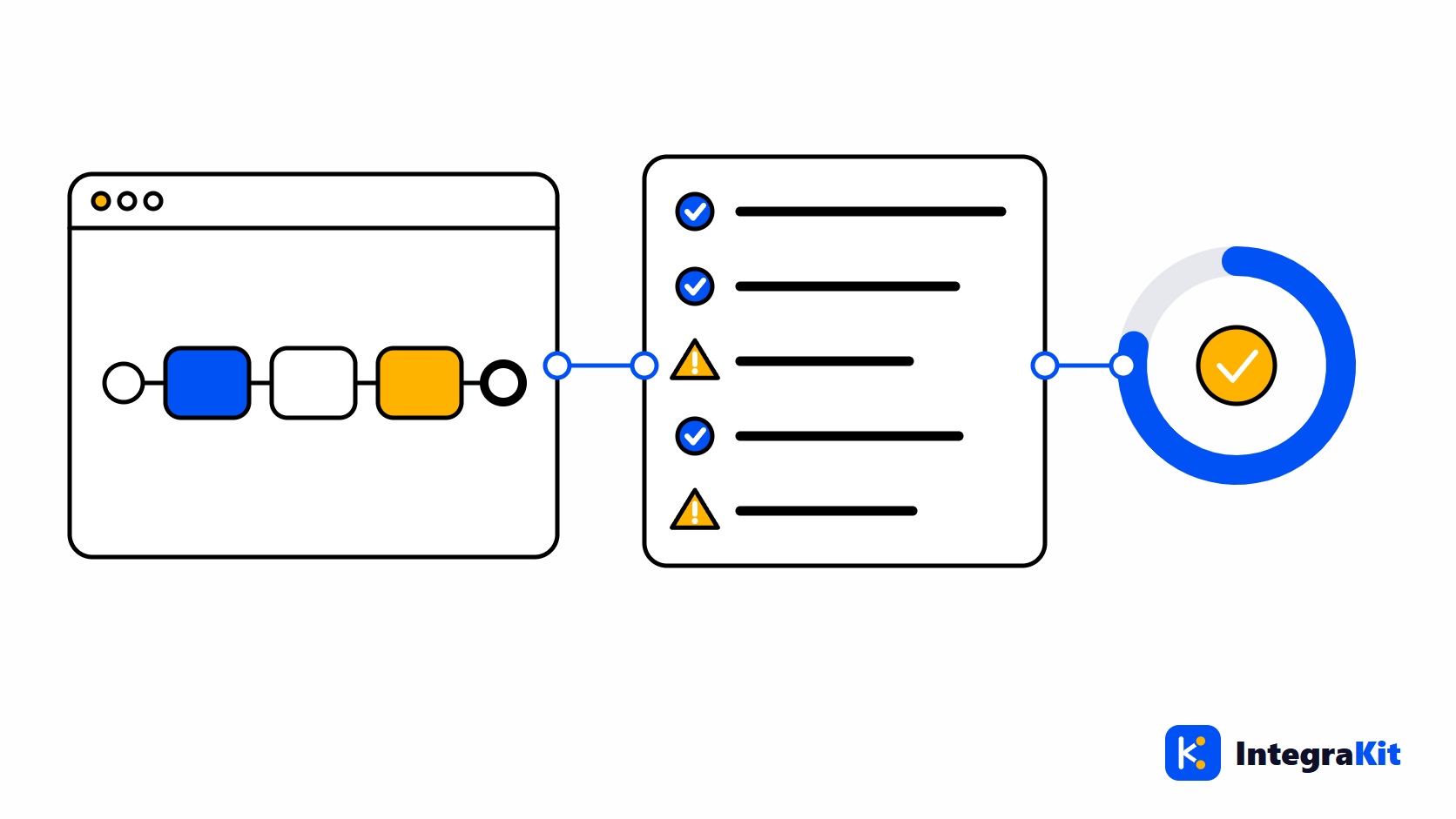
An iFlow review usually happens under time pressure, just before a transport, and it checks whatever the reviewer remembers. The same problems then reach production again and again: no error handling, a password in a Content Modifier, a Router without a default route.
This article gives a checklist of twelve checks for SAP Cloud Integration (SAP CPI) iFlows, explains why each one matters, and shows how to run them automatically, with a score and a report you can attach to the transport.
When to review an iFlow
- Before the first transport to a test or production tenant.
- When an iFlow is handed over to another developer or to operations.
- After a larger change, such as a new receiver or a new script.
- Now and then for iFlows that have grown over the years.
The checklist
| Check | Why it matters | Category |
|---|---|---|
| No Exception Subprocess | An error ends the message with SAP's default handling: no alert, no clean answer to the sender. | Reliability |
| Verbose log level | Logging every step slows each message and fills the tenant's log store. | Performance |
| No description | Others cannot tell what the iFlow does or who owns it without opening it. | Maintainability |
| Secret in plain text | Anyone who can open or download the iFlow can read a password or token written into it. | Security |
| Script step without a script | A script step with no script file fails at runtime. | Correctness |
| Large process | A process with many steps is hard to read, test and change. | Maintainability |
| Insecure protocol | Plain HTTP or FTP sends data, and Basic credentials, unencrypted. | Security |
| Call without a receiver | A Request Reply or Send step with no channel has nowhere to send the message. | Correctness |
| Script risk | println, reading a large body as one String, very long scripts, XML parsers open to XXE. | Performance |
| Unused Local Integration Process | No Process Call reaches it, so it never runs. | Maintainability |
| Step not connected | No path from a start event reaches it, so it never runs. | Correctness |
| Router without a default route | When no condition matches, the message fails instead of taking a known path. | Reliability |
These are the categories Kitegra uses. In a manual review, what matters is that each check has a reason and a fix the team agrees on.
What a checklist cannot see
Checks read the iFlow's design. They do not know whether the mapping is right for the business, whether the receiver can take the load, or whether the error handling sends the alert to someone who reads it. A review still needs a person for those questions, and a test with real-looking data.
Names are a separate part of the review: a naming rule pack makes them checkable too.
Run the checks automatically
In Kitegra, open the iFlow, click the "Kitegra" button and choose Inspector. Its Design tab runs the twelve checks above on the open iFlow and its scripts:
- Each finding shows why it matters and a "Fix:" line.
- The "Score (0–100) and grade" sums up the iFlow, from A to E.
- "Check settings" switches a check off, or changes how much it counts in the score; those settings sync with your Kitegra account.
- "Set baseline" marks today's findings as known, so the next review shows only what is new.
- "Suppress" hides one finding, and asks why; "Show known and suppressed" brings them back.
One check concerns the log level; why TRACE should not stay on explains it.
Share the result as a report
Report opens the iFlow report in a new tab: the iFlow's facts (steps, scripts, adapters, processes), its score, the design findings filtered by category or severity, and the naming findings. Export it as HTML, PDF or Excel, or Print it. Under "Report header" you can add a company name and a logo of 20 KB or less.
The report is read from the iFlow's model and includes no message content. The PDF's labels are in English.
How Kitegra helps
Design checks are part of the iFlow Inspector in the Kitegra. They run in your browser on the open iFlow; check settings and baselines sync with your Kitegra account when you sign in, and scripts and mappings are never sent.
The Helper, Message Monitor, iFlow Inspector and iFlow Docs each count the iFlows you use them on: 5 per module without an account, 50 on the Free plan, 100 on Starter and 300 on Pro; Startup Team gives each member 300, Growth Team and Scale Team have no limit. The Toolbox and the workspace extras count no iFlows. While Kitegra launches, every tool is open to everyone signed in, on the Free plan too. Compare the plans.
Try it in your next iFlow
Read what Kitegra adds around the SAP Integration Suite designer, or see it next to its modules.
Frequently asked questions
What should an SAP CPI iFlow review check?
Error handling, log level, description, secrets in plain text, scripts, protocol security, unconnected or unused parts, and Router default routes, plus naming and the business logic.
Why is a Router without a default route a problem?
When no condition matches, the message fails instead of taking a known path.
How is the score calculated?
Each finding lowers the score from 100 by a weight that depends on its severity, and the score maps to a grade from A to E. You can change how much a check counts.
What does Set baseline do?
It marks today's findings as known, so a later review shows only new ones.
Can I export the review?
Yes. The iFlow report exports to HTML, PDF or Excel, with your company name and logo.
Does the report contain message content?
No. It is read from the iFlow's model and includes no message content.